Web Technologies – BCA 2nd Semester 2026 - (Code: BCA-2005T / BCA-2005P)

Web Technologies – BCA 2nd Semester 2026 – (Code: BCA-2005T / BCA-2005P)

BCA-2005T (For theory)

BCA-2005P (For practical)

SEC-III – Web Technologies

1L+T: 2P
2 Credits (15 hours theory and 30 hours practical)

Max Marks:
Theory: 100 (Int: 25; Ext: 75)
Practical: 100

Course Outcomes: Upon completion of the course, students will be able to

CO1: Understand the concepts of webpage, mark up language along with CSS.
CO2: Understand the core concepts of JavaScript including functions, events, DOM manipulation, and form validation.
CO3: Apply AJAX, XML, and JSON to create dynamic and interactive web applications.

Unit I

Introduction to HTML

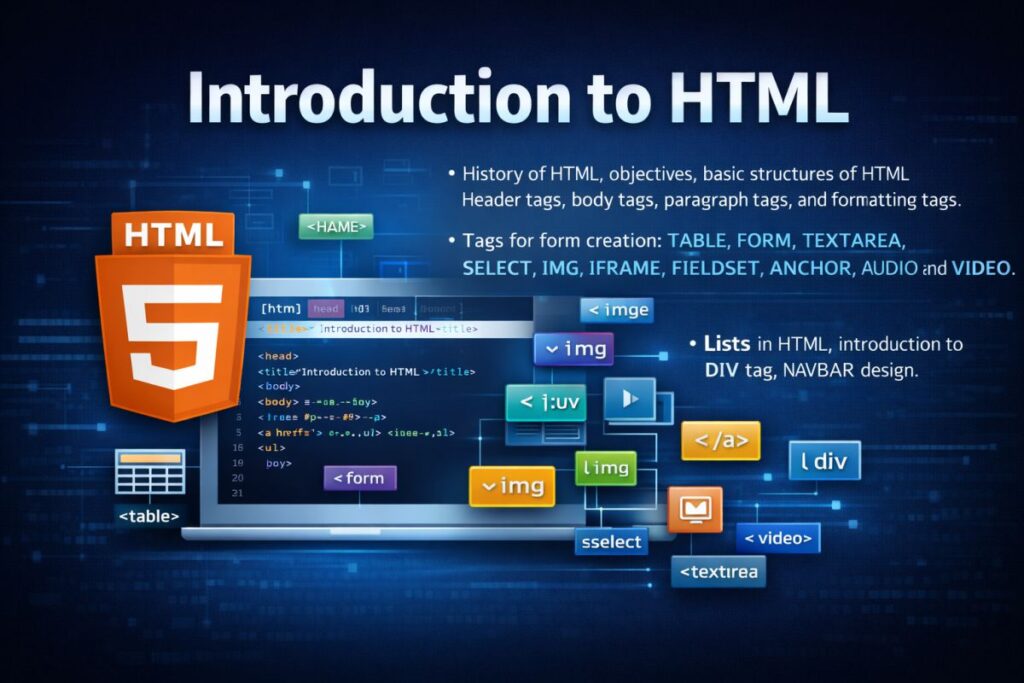
History of HTML, objectives, basic structures of HTML, header tags, body tags, paragraph tags, and formatting tags.
Tags for form creation: TABLE, FORM, TEXTAREA, SELECT, IMG, IFRAME, FIELDSET, ANCHOR, AUDIO, and VIDEO.
Lists in HTML, introduction to the DIV tag, NAVBAR design.

Introduction to CSS

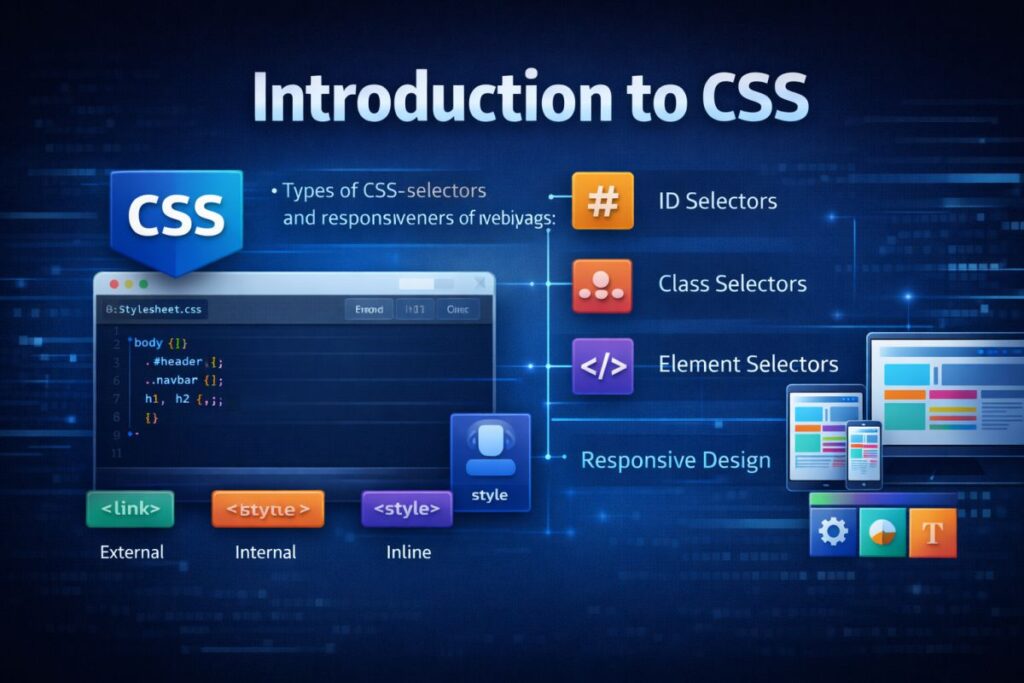
Types of CSS, selectors, and responsiveness of a web page.

Introduction to Bootstrap

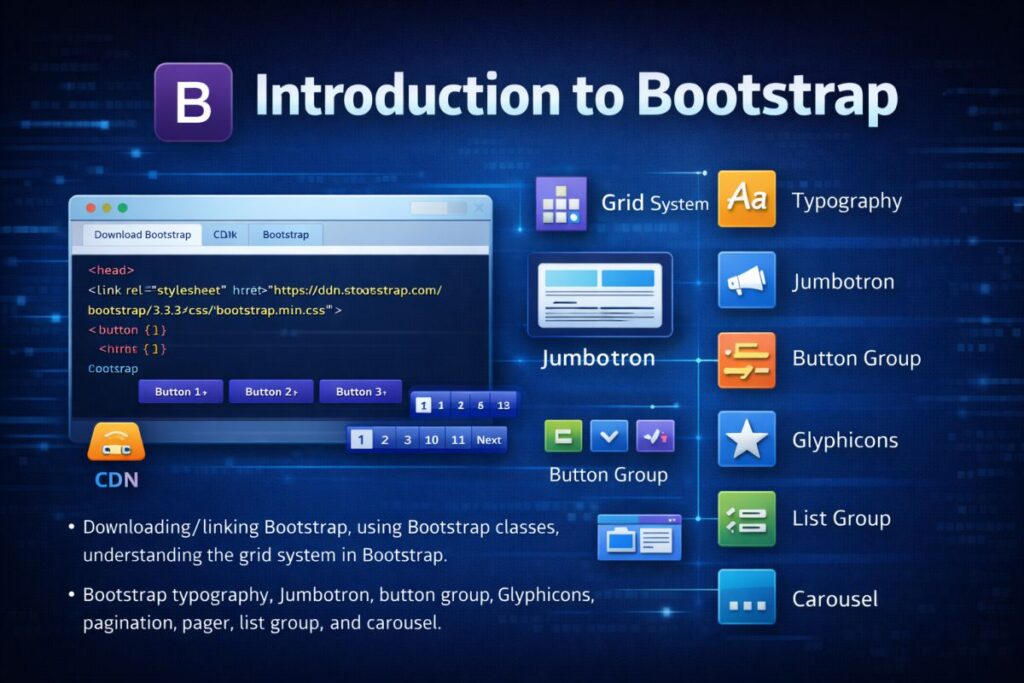
Downloading/linking Bootstrap, using Bootstrap classes, understanding the grid system in Bootstrap.
Bootstrap typography, Jumbotron, button group, Glyphicons, pagination, pager, list group, and carousel.

Introduction to WWW

Protocols and programs, applications and development tools, web browsers, DNS, web hosting providers.
Setting up Windows/Linux/Unix web servers, web hosting in the cloud, and types of web hosting.

Unit II

Introduction to JavaScript

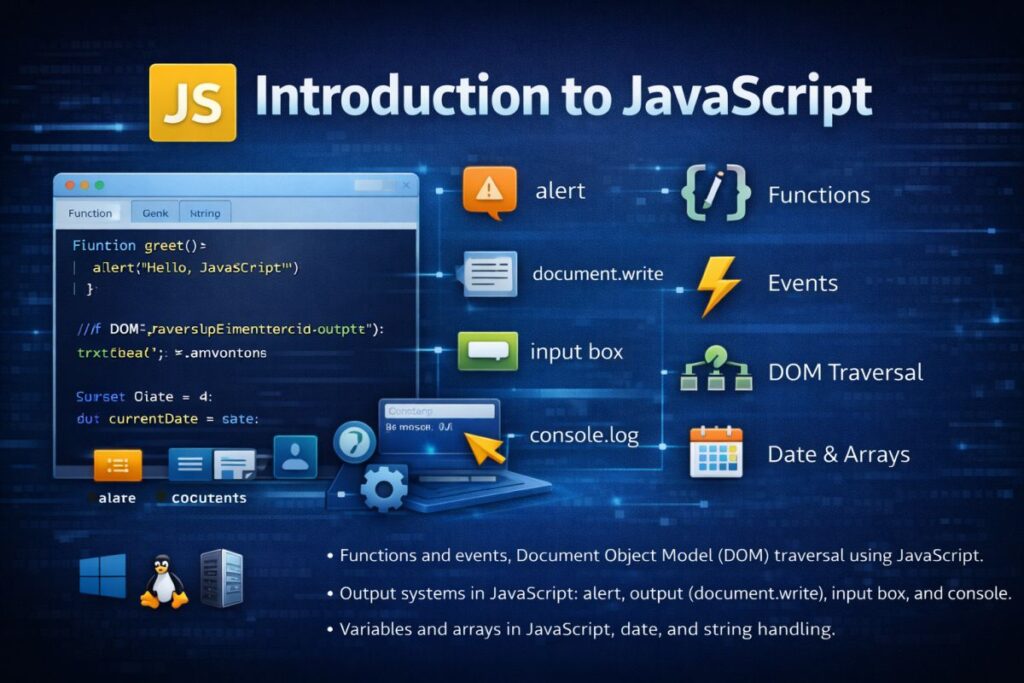
Functions and events, Document Object Model (DOM) traversal using JavaScript.
Output systems in JavaScript: alert, throughput, input box, and console.
Variables and arrays in JavaScript, date, and string handling.

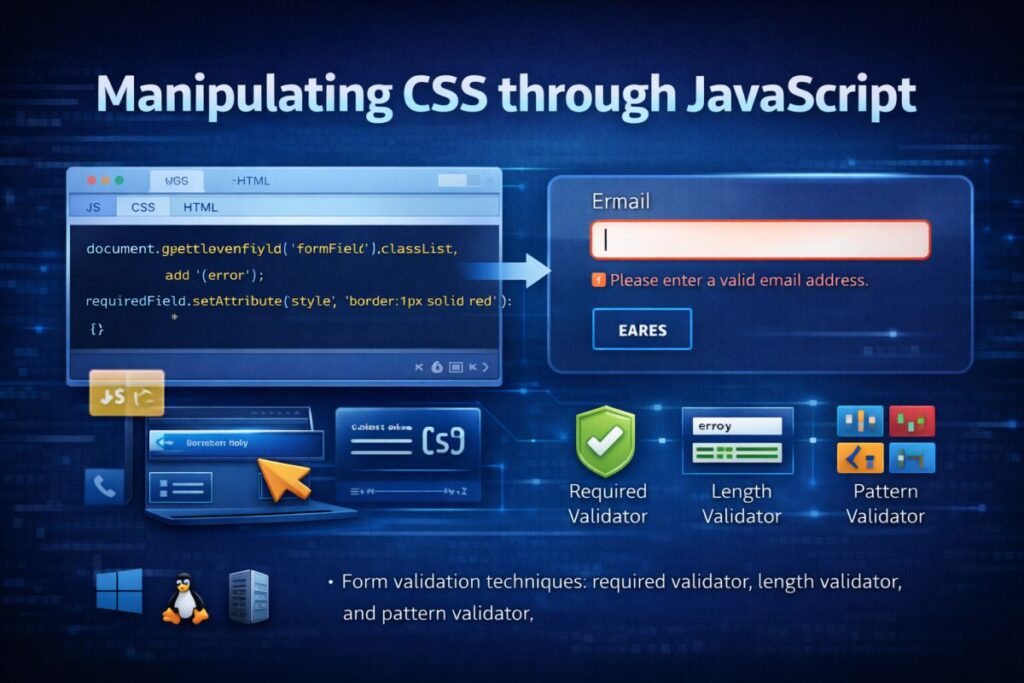
Manipulating CSS through JavaScript

Form validation techniques: required validator, length validator, and pattern validator.

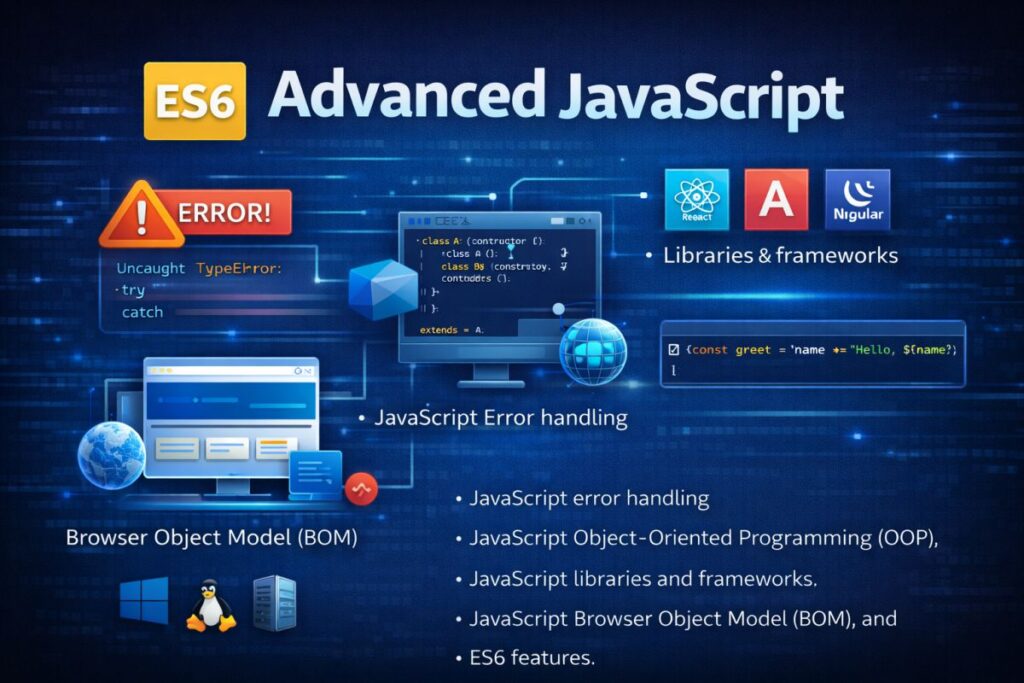
Advanced JavaScript

JavaScript error handling, JavaScript Object-Oriented Programming (OOP), JavaScript libraries and frameworks, JavaScript Browser Object Model (BOM), and ES6 features.

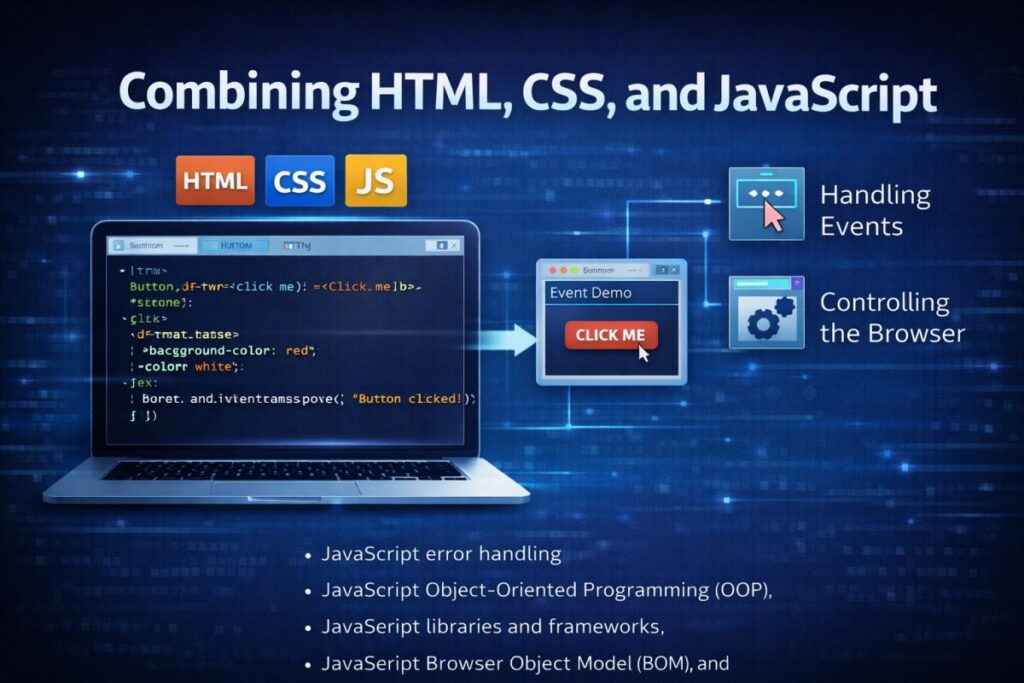
Combining HTML, CSS, and JavaScript

Handling events and buttons, controlling the browser.

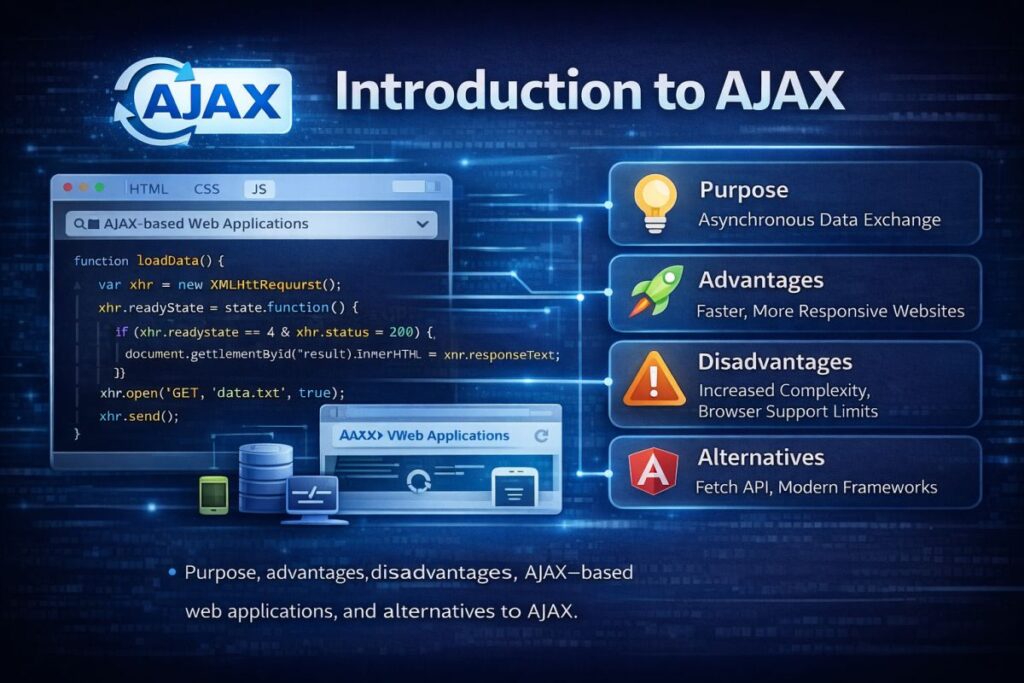
Introduction to AJAX

Purpose, advantages, disadvantages, AJAX-based web applications, and alternatives to AJAX.

Introduction to XML

Uses, key concepts, DTD & schemas, XSL, XSLT, XSL elements, and transforming XML using XSLT.

Introduction to XHTML

Key concepts and features.

Introduction to JSON

Keys and values, types of values, arrays, and objects.

Lab Programs

Part – A

  1. Create your class time table using table tag.
  2. Design a Webpage for your college containing a description of courses, departments, faculties, library, etc., using list tags, href tags, and anchor tags.
  3. Create a web page using Frame with rows and columns where you will have a header frame, left frame, right frame, and status bar frame. On clicking in the left frame, information should be displayed in the right frame.
  4. Create your resume using HTML, using text, link, size, color, and lists.
  5. Create a Web Page of a supermarket using internal CSS.
  6. Use inline CSS to format the resume that you have created.
  7. Use external CSS to format your timetable created.
  8. Use all the CSS (inline, internal, and external) to format the college web page that you have created.
  9. Write an HTML program to create your college website for mobile devices.

Part – B

  1. Write an HTML/JavaScript page to create a login page with validations.
  2. Develop a simple calculator for addition, subtraction, multiplication, and division operations using JavaScript.
  3. Use regular expressions for validations in the login page using JavaScript.
  4. Write a program to retrieve data from a text file and display it using AJAX.
  5. Create an XML file to store Student Information like Register Number, Name, Mobile Number, DOB, and Email-ID.
  6. Create a DTD for the XML file created.
  7. Create an XML schema for the XML file created.
  8. Create an XSL file to convert the XML file to an XHTML file.
  9. Write a JavaScript program using a switch case.
  10. Write a JavaScript program using any five events.
  11. Write a JavaScript program using built-in JavaScript objects.
  12. Write a program for populating values from JSON text.
  13. Write a program to transform JSON text into a JavaScript object.

UNIT - I

Introduction to HTML History of HTML, objectives, basic structures of HTML, header tags, body tags, paragraph tags, and formatting tags. Tags for form creation: TABLE, FORM, TEXTAREA, SELECT, IMG, IFRAME, FIELDSET, ANCHOR, AUDIO, and VIDEO. Lists in HTML, introduction to the DIV tag, NAVBAR design.

Introduction to HTML

🌐 What is HTML?

HTML stands for HyperText Markup Language. It is the standard markup language used to create and structure web pages.

HTML defines the structure of a webpage using elements (tags). It works together with:

  • CSS → for styling

  • JavaScript → for interactivity

🕰 History of HTML

HTML was developed by Tim Berners-Lee in 1989 while working at CERN.

Major Versions:

YearVersionKey Features
1991HTMLBasic structure & text formatting
1995HTML 2.0Forms introduced
1997HTML 3.2Tables support
1999HTML 4.01CSS & scripting support
2000XHTMLStrict XML-based version
2014HTML5Multimedia & semantic elements

HTML5 is the current standard.

🎯 Objectives of HTML

The main objectives of HTML are:

  1. To structure web content

  2. To link web documents (hypertext concept)

  3. To display multimedia content

  4. To create forms for user interaction

  5. To support platform independence

  6. To integrate with CSS and JavaScript

🏗 Basic Structure of HTML

Every HTML document follows a standard structure:

<!DOCTYPE html>
<html>
<head>
<title>My Web Page</title>
</head>
<body>
Content goes here
</body>
</html>

  • Explanation:

    • <!DOCTYPE html> → Declares HTML5

    • <html> → Root element

    • <head> → Contains metadata

    • <title> → Page title

    • <body> → Visible content

🏷 Header Tags

Header tags are used to define headings.

<h1>Main Heading</h1>
<h2>Sub Heading</h2>
<h3>Section Heading</h3>
 

There are 6 heading levels: <h1> to <h6>.

📄 Paragraph Tag

Used to define paragraphs.

<p>This is a paragraph.</p>

✨ Formatting Tags

Used to format text.

TagPurpose
<b>Bold
<i>Italic
<u>Underline
<strong>Important text
<em>Emphasized text
<mark>Highlight text

<p><b>Bold</b> and <i>Italic</i> text</p>

📝 Tags for Form Creation

HTML provides various tags for creating forms and user input systems.

<form>

Defines a form.
<form>
Name: <input type=”text”>
</form>

<input>

Used for user input fields (text, password, email, etc.).

<textarea>

Used for multi-line input.

<textarea rows=”4″ cols=”30″></textarea>

<select>

Creates a dropdown list.

<select>
<option>Option 1</option>
<option>Option 2</option>
</select>

<fieldset>

Groups related form elements.

<fieldset>
<legend>Personal Info</legend>
</fieldset>

<table>

Used to create tables.

<table border=”1″>
<tr>
<th>Name</th>
<th>Age</th>
</tr>
<tr>
<td>Aman</td>
<td>21</td>
</tr>
</table>

<img>

Used to display images.

<img src=”image.jpg” alt=”Sample Image”>

<iframe>

Embeds another webpage.

<iframe src=”https://example.com”></iframe>

<a> (Anchor Tag)

Used to create hyperlinks.

<a href=”https://example.com”>Visit Website</a>

<audio>

Embeds audio content.

<audio controls>
<source src=”audio.mp3″>
</audio>

<video>

Embeds video content.

<video width=”320″ controls>
<source src=”video.mp4″>
</video>

📋 Lists in HTML

HTML supports three types of lists:

1️⃣ Ordered List
<ol>
<li>Item 1</li>
<li>Item 2</li>
</ol>

2️⃣ Unordered List
<ul>
<li>Item 1</li>
<li>Item 2</li>
</ul>

3️⃣ Definition List
<dl>
<dt>HTML</dt>
<dd>HyperText Markup Language</dd>
</dl>

📦 Introduction to the
Tag

The <div> tag is used to group elements together.
It is commonly used for layout and styling.

<div>
<h2>Section Title</h2>
<p>Content here</p>
</div>

🧭 NAVBAR Design (Basic Example)

A navigation bar (navbar) is used for website navigation.

<nav>
<a href=”#”>Home</a>
<a href=”#”>About</a>
<a href=”#”>Contact</a>
</nav>

Using CSS, it can be styled horizontally.

🎯 Exam Important Points

  • HTML stands for HyperText Markup Language.
  • Developed by Tim Berners-Lee.
  • HTML structure includes html, head, and body tags.
  • Forms use form, input, textarea, select tags.
  • Lists: ordered, unordered, definition.
  • Div is used for grouping content.
  • Anchor tag creates hyperlinks.
  • HTML5 supports audio and video.
Introduction to CSS Types of CSS, selectors, and responsiveness of a web page.

📘 Introduction to CSS

🌐 What is CSS?

CSS stands for Cascading Style Sheets.

It is used to control the appearance, layout, and design of web pages. While HTML provides structure, CSS makes the webpage visually attractive.

With CSS, you can control:

  • Colors

  • Fonts

  • Spacing

  • Layout

  • Alignment

  • Responsive behavior

🎯 Why CSS is Important

  • Separates content from design

  • Improves website appearance

  • Makes pages responsive

  • Reduces code repetition

  • Enhances user experience

🧩 Types of CSS

  • There are three types of CSS:

1️⃣ Inline CSS

CSS is written directly inside the HTML element using the style attribute.

Example:

<p style=color: blue; font-size: 20px;>Hello World</p>
 

Advantages:

  • Easy to use

  • Useful for quick styling

Disadvantages:

    • Not reusable

    • Makes code messy

2️⃣ Internal CSS

CSS is written inside the <style> tag within the <head> section.

Example:

<!DOCTYPE html>
<html>
<head>
<style>
p {
color: red;
font-size: 18px;
}
</style>
</head>
<body>
<p>This is a paragraph.</p>
</body>
</html>
 

Advantages:

  • Applies to the whole page

  • Better than inline CSS

Disadvantages:

  • Only works for one HTML page

3️⃣ External CSS

CSS is written in a separate .css file and linked to the HTML document.

Example:

HTML File:

<link rel=“stylesheet” href=“style.css”>
 

style.css:

p {
color: green;
font-size: 16px;
}
 

Advantages:

  • Reusable

  • Cleaner code

  • Best practice in web development

🎯 CSS Selectors

Selectors are used to select HTML elements that you want to style.

1️⃣ Element Selector
Selects elements by tag name.

p {
color: blue;
}


2️⃣ ID Selector
Selects an element with a specific id.

#heading {
color: red;
}
 

HTML:
<h1 id=“heading”>Title</h1>


3️⃣ Class Selector

Selects elements with a specific class.

.box {
background-color: yellow;
}

HTML:
<div class=“box”>Content</div>


4️⃣ Universal Selector

Selects all elements.

* {
margin: 0;
padding: 0;
}


5️⃣ Group Selector

Applies the same style to multiple elements.

h1, h2, p {
color: purple;
}
 

📱 Responsiveness of a Web Page

Selectors are used to select HTML elements that you want to style.

🌍 What is Responsive Design?

Responsive design means that a website automatically adjusts its layout according to different screen sizes such as:

  • Mobile

  • Tablet

  • Laptop

  • Desktop

🔹 Why Responsiveness is Important

  • Improves user experience

  • Mobile-friendly design

  • Better SEO ranking

  • Works on all devices

Media Queries in CSS

Media queries are used to apply CSS rules based on screen size.

Example:

@media (max-width: 600px) {
body {
background-color: lightblue;
}
}
This means:

If the screen width is 600px or less, the background color changes.


Flexible Units

Responsive design uses:

  • % (percentage)

  • em

  • rem

  • vh

  • vw

Instead of fixed units like px.


Responsive Images

img {
max-width: 100%;
height: auto;
}
This ensures images adjust to screen size.

📊 Summary Table

TopicDescription
CSSUsed for styling web pages
Types of CSSInline, Internal, External
SelectorsElement, ID, Class, Universal
ResponsivenessAdjust layout for different devices
Media QueriesApply styles based on screen size

🎯 Exam Important Points

  • CSS stands for Cascading Style Sheets.
  • Three types: Inline, Internal, External.
  • External CSS is best practice.
  • Selectors are used to target HTML elements.
  • Media queries make websites responsive.
  • Responsive design improves mobile usability.

📝 Short Revision Notes

  • CSS styles HTML pages.
  • Three types of CSS.
  • Selectors target elements.
  • Media queries enable responsive design.
Introduction to Bootstrap Downloading/linking Bootstrap, using Bootstrap classes, understanding the grid system in Bootstrap. Bootstrap typography, Jumbotron, button group, Glyphicons, pagination, pager, list group, and carousel.

Introduction to Bootstrap

🌐 What is Bootstrap?

Bootstrap is a front-end framework used for designing responsive and mobile-first websites quickly and easily.

It includes:

  • Predefined CSS classes

  • JavaScript components

  • Grid system

  • Responsive utilities

Bootstrap reduces development time and ensures consistent design.

🎯Why Use Bootstrap?

  • Mobile-first design

  • Responsive layout

  • Pre-designed components

  • Cross-browser compatibility

  • Easy to use

Bootstrap was originally developed by Twitter.

📥 Downloading / Linking Bootstrap

There are two main ways to use Bootstrap:

1️⃣ Using CDN (Recommended Method)

You can link Bootstrap directly from a Content Delivery Network (CDN).

<link href=”https://cdn.jsdelivr.net/npm/bootstrap@5.3.2/dist/css/bootstrap.min.css” rel=”stylesheet”>

For JavaScript:

<script src=”https://cdn.jsdelivr.net/npm/bootstrap@5.3.2/dist/js/bootstrap.bundle.min.js”></script>
 

Advantages:

  • No need to download files

  • Fast loading

  • Easy setup

2️⃣ Downloading Bootstrap

Steps:

  1. Go to the official website:
    Bootstrap

  2. Download the ZIP file.

  3. Extract and link the CSS and JS files manually.

Example:

<link rel=“stylesheet” href=“css/bootstrap.min.css”>
<script src=“js/bootstrap.bundle.min.js”></script>

🎨 Using Bootstrap Classes

Bootstrap provides predefined classes for styling.
Example:
<button class=“btn btn-primary”>Click Me</button>
Common classes:

  • container

  • row

  • col

  • btn

  • text-center

  • bg-primary

  • card

🧩 Understanding the Grid System

Bootstrap uses a 12-column grid system. It helps create responsive layouts.


Basic Grid Example

<div class=“container”>
<div class=“row”>
<div class=“col-md-6”>Left Side</div>
<div class=“col-md-6”>Right Side</div>
</div>
</div>
 
Explanation:
  • container → Main wrapper

  • row → Horizontal row

  • col-md-6 → 6 columns (half width on medium screens)

🔹 Breakpoints in Bootstrap

ClassScreen Size
col-smSmall devices
col-mdMedium devices
col-lgLarge devices
col-xlExtra large devices

✍ Bootstrap Typography

Bootstrap provides ready-made typography classes.

Examples:

<p class=“lead”>This is a lead paragraph.</p>
<p class=“text-danger”>Red text</p>
<p class=“fw-bold”>Bold text</p>
 

Common classes:

  • lead

  • text-primary

  • text-center

  • fw-bold

  • text-muted

🏗 Jumbotron

Jumbotron is used to highlight important content.

(Note: Removed in Bootstrap 5, but still important for exams.)

Example (Bootstrap 4 style):

<div class=“jumbotron”>
<h1>Welcome</h1>
<p>This is a Jumbotron.</p>
</div>
 

Purpose:

  • Display featured content

  • Highlight important announcements

🔘 Button Group

Used to group multiple buttons together.

<div class=“btn-group”>
<button class=“btn btn-primary”>Left</button>
<button class=“btn btn-primary”>Middle</button>
<button class=“btn btn-primary”>Right</button>
</div>

🎯 Glyphicons

Glyphicons are icon fonts used in Bootstrap 3.

Example:

<span class=“glyphicon glyphicon-search”></span>
 

Note:
Glyphicons are not included in Bootstrap 4 and 5 by default.

📄 Pagination

Used to create page navigation links.

<ul class=“pagination”>
<li class=“page-item”><a class=“page-link” href=“#”>1</a></li>
<li class=“page-item”><a class=“page-link” href=“#”>2</a></li>
</ul>

📌 Pager

Pager provides simple previous and next navigation.

Example (Bootstrap 3 style):

<ul class=“pager”>
<li><a href=“#”>Previous</a></li>
<li><a href=“#”>Next</a></li>
</ul>

📋 List Group

Used to create styled lists.

<ul class=“list-group”>
<li class=“list-group-item”>Item 1</li>
<li class=“list-group-item”>Item 2</li>
</ul>

🎞 Carousel

Carousel is used to create image sliders.

<div id=“carouselExample” class=“carousel slide”>
<div class=“carousel-inner”>
<div class=“carousel-item active”>
<img src=“image1.jpg” class=“d-block w-100”>
</div>
<div class=“carousel-item”>
<img src=“image2.jpg” class=“d-block w-100”>
</div>
</div>
</div>

Uses:

  • Image sliders

  • Banner sections

  • Featured content

📊 Summary Table

FeaturePurpose
Grid SystemResponsive layout
TypographyStyled text
JumbotronHighlight content
Button GroupGroup buttons
GlyphiconsIcons
PaginationPage navigation
List GroupStyled lists
CarouselImage slider

🎯 Exam Important Points

  • Bootstrap is a front-end framework.
  • It uses a 12-column grid system.
  • CDN is the easiest way to use Bootstrap.
  • Grid system ensures responsive design.
  • Jumbotron highlights important content.
  • Carousel creates image sliders.
  • Pagination is used for page navigation.

📝 Short Revision Notes

  • Bootstrap simplifies web design.
  • Mobile-first framework.
  • 12-column responsive grid.
  • Predefined classes save time.
  • Includes UI components like carousel and list groups.
Introduction to WWW Protocols and programs, applications and development tools, web browsers, DNS, web hosting providers. Setting up Windows/Linux/Unix web servers, web hosting in the cloud, and types of web hosting.

Introduction to WWW (World Wide Web)

🌐 What is WWW?

The World Wide Web (WWW) is a system of interconnected web pages and resources that are accessed through the Internet using web browsers.

It was invented by Tim Berners-Lee in 1989.

WWW works on three main technologies:

  • HTML (structure)
  • URL (address)
  • HTTP (communication protocol)


🌍 Components of WWW

  1. Web Browser
  2. Web Server
  3. Protocols
  4. DNS
  5. Hosting

🔗 Protocols and Programs

🌐 What is a Protocol?

A protocol is a set of rules that allows communication between devices over the Internet.

🔹 Important Internet Protocols

1️⃣ HTTP (HyperText Transfer Protocol)

  • Used to transfer web pages.
  • Works between browser and server.
  • Default port: 80

2️⃣ HTTPS (Secure HTTP)

  • Secure version of HTTP.
  • Uses encryption (SSL/TLS).
  • Default port: 443

3️⃣ FTP (File Transfer Protocol)

  • Used to transfer files between computers.

4️⃣ SMTP (Simple Mail Transfer Protocol)

  • Used to send emails.

💻 Programs Used in WWW

  • Web Browsers
  • Web Servers
  • FTP Clients
  • Email Clients

🛠 Applications and Development Tools

Web development requires various tools.


🔹 Front-End Tools

  • HTML
  • CSS
  • JavaScript

🔹 Back-End Tools

  • PHP
  • Python
  • Node.js
  • Java

🔹 Development Tools

  • Code Editors (VS Code, Notepad++)
  • Browsers (for testing)
  • Local servers (XAMPP, WAMP)

🌐 Web Browsers

A web browser is software used to access websites.

Popular web browsers:

  • Google Chrome
  • Mozilla Firefox
  • Microsoft Edge
  • Safari

Functions of a Web Browser:

  • Sends request to server
  • Receives response
  • Displays web page
  •  

🌎 DNS (Domain Name System)

DNS converts domain names into IP addresses.

Example:

  • Domain: www.google.com
  • IP Address: 142.250.182.14

DNS acts like a phonebook of the Internet.
Without DNS, we would need to remember IP addresses instead of names.

🏢 Web Hosting Providers

Web hosting providers store website files on servers so they can be accessed online.
Popular hosting providers:

  • GoDaddy
  • Hostinger
  • Bluehost
  • Amazon Web Services

🖥 Setting Up Web Servers

A web server stores and delivers web pages to users.


🔹 Web Server on Windows

  • Install XAMPP or WAMP
  • Start Apache server
  • Place website files inside htdocs folder
  • Access via: http://localhost


🔹 Web Server on Linux

  • Install Apache using terminal:

    sudo apt install apache2
     
  • Access via browser using server IP address.


🔹 Web Server on Unix

  • Install Apache or Nginx
  • Configure server settings
  • Start service

Common Web Server Software:

  • Apache
  • Nginx
  • IIS

☁ Web Hosting in the Cloud

Cloud hosting stores websites on multiple servers.

Example:

  • Amazon Web Services
  • Google Cloud
  • Microsoft Azure

Advantages:

  • High availability
  • Scalability
  • Better performance
  • Pay-as-you-use model

🏷 Types of Web Hosting


🔹 1️⃣ Shared Hosting

  • Multiple websites share one server.
  • Low cost.
  • Suitable for small websites.

🔹 2️⃣ VPS Hosting (Virtual Private Server)

  • Virtual server environment.
  • More control than shared hosting.

🔹 3️⃣ Dedicated Hosting

  • Entire server dedicated to one website.
  • High performance.
  • Expensive.

🔹 4️⃣ Cloud Hosting

  • Hosted on multiple connected servers.
  • High scalability and reliability.

📊 Summary Table

TopicDescription
WWWSystem of interconnected web pages
HTTPTransfers web pages
DNSConverts domain to IP
Web BrowserDisplays websites
Web ServerStores website files
Shared HostingMultiple sites, low cost
Cloud HostingScalable & reliable

🎯 Exam Important Points

  • WWW invented by Tim Berners-Lee.
  • HTTP and HTTPS are communication protocols.
  • DNS converts domain names to IP addresses.
  • Web browsers display web pages.
  • Apache and Nginx are web servers.
  • Cloud hosting provides scalability.
  • Types of hosting: Shared, VPS, Dedicated, Cloud.

📝 Short Revision Notes

  • WWW = Web system accessed via Internet.
  • Uses HTTP, DNS, and Web Browsers.
  • Hosting stores website files.
  • Cloud hosting is scalable and reliable.

UNIT - II

Introduction to JavaScript Functions and events, Document Object Model (DOM) traversal using JavaScript. Output systems in JavaScript: alert, throughput, input box, and console. Variables and arrays in JavaScript, date, and string handling.

📘 Introduction to JavaScript

(Web Technologies – BCA 2nd Semester)

🌐 What is JavaScript?

JavaScript is a client-side scripting language used to make web pages interactive and dynamic.

It works together with:

  • HTML → Structure
  • CSS → Styling
  • JavaScript → Interactivity

JavaScript runs inside the web browser.

🎯 Features of JavaScript

  • Lightweight and fast
  • Object-oriented
  • Event-driven
  • Cross-platform
  • Case-sensitive

🔹 Functions in JavaScript

A function is a block of code designed to perform a specific task.

📌 Syntax:

function functionName() {
// code here
}
 

📌 Example:

function greet() {
alert(“Hello Student”);
}
 

You can call a function like this:

greet();
 

🔹 Function with Parameters

function add(a, b) {
return a + b;
}
 

🔔 Events in JavaScript

An event is an action that occurs in the browser.

Examples:

  • Button click
  • Mouse over
  • Key press
  • Page load

📌 Example of Event Handling

<button onclick=showMessage()>Click Me</button>

<script>
function showMessage() {
alert(“Button Clicked”);
}
</script>


Common Events:

  • onclick
  • onmouseover
  • onkeydown
  • onload
  • onsubmit

🌳 Document Object Model (DOM)

A function is a block of code designed to perform a specific task.

📌 What is DOM?

DOM stands for Document Object Model.

It represents an HTML document as a tree structure where each element is an object.

JavaScript can:

  • Access elements
  • Modify content
  • Change styles
  • Add or remove elements

🔹 DOM Traversal Using JavaScript

A function is a block of code designed to perform a specific task.

1️⃣ Accessing Elements

document.getElementById(“demo”);
document.getElementsByClassName(“box”);
document.getElementsByTagName(“p”);


2️⃣ Changing Content

document.getElementById(“demo”).innerHTML = “New Content”;


3️⃣ Changing CSS

document.getElementById(“demo”).style.color = “red”;


4️⃣ Using Query Selector

document.querySelector(“.className”);
document.querySelectorAll(“p”);

🖥 Output Systems in JavaScript

JavaScript provides different ways to display output.

🔹 1️⃣ alert()

Displays a popup message.
alert(“Welcome!”);


🔹 2️⃣ document.write() (Throughput Method)

Writes output directly to the webpage.
document.write(“Hello World”);


🔹 3️⃣ prompt() (Input Box)

Takes input from the user.
let name = prompt(“Enter your name:”);


🔹 4️⃣ console.log()

Displays output in the browser console.
console.log(“This is console output”);

📦 Variables in JavaScript

Variables store data values.

🔹 Declaration Keywords

  • var
  • let
  • const

Example:

let name = “Aman”;
const age = 21;


🔹 Rules for Variable Naming

  • Must start with a letter, _ or $
  • Cannot start with a number
  • Case-sensitive

📊 Arrays in JavaScript

An array stores multiple values in a single variable.

Example:


let fruits = [“Apple”, “Banana”, “Mango”];
 

Accessing array elements:


console.log(fruits[0]);
 

🔹 Array Methods

  • push() → Add element

  • pop() → Remove last element

  • length → Count elements

📅 Date Handling in JavaScript

JavaScript provides a built-in Date object.


let today = new Date();
console.log(today);
 

Common Methods:

  • getDate()

  • getMonth()

  • getFullYear()

  • getHours()

Example:


let year = new Date().getFullYear();
 

🔤 String Handling in JavaScript

A string is a sequence of characters.


let message = “Hello World”;
 

🔹 Common String Methods

  • length

  • toUpperCase()

  • toLowerCase()

  • substring()

  • replace()

Example:


let text = “Hello”;
console.log(text.toUpperCase());

📊 Summary Table

TopicDescription
FunctionBlock of reusable code
EventAction triggered by user
DOMRepresents HTML as tree
alert()Popup output
prompt()User input box
VariablesStore values
ArraysStore multiple values
DateHandles date and time
StringsText data handling

🎯 Exam Important Points

  • JavaScript is a client-side scripting language.
  • Functions perform specific tasks.
  • Events respond to user actions.
  • DOM allows manipulation of HTML elements.
  • alert(), document.write(), prompt(), console.log() are output methods.
  • Variables: var, let, const.
  • Arrays store multiple values.
  • Date object handles date and time.

📝 Short Revision Notes

  • JS makes websites interactive.
  • DOM connects JavaScript with HTML.
  • Functions and events are core concepts.
  • Variables and arrays store data.
  • Date and string methods manipulate values.
Manipulating CSS through JavaScript Form validation techniques: required validator, length validator, and pattern validator.

📘 Manipulating CSS through JavaScript

📘 Form Validation Techniques

🧩 Manipulating CSS through JavaScript

🌐 Introduction

JavaScript can dynamically change the style of HTML elements. This allows developers to modify CSS properties based on user interaction or events.

This process is done using the DOM (Document Object Model).

🎯 Why Manipulate CSS Using JavaScript?

  • To change styles dynamically
  • To create interactive effects
  • To respond to user actions
  • To validate forms visually
  • To build responsive UI behavior

🔹 Changing CSS Using JavaScript

  • 1️⃣ Using the style Property

    You can directly change CSS properties using the .style attribute.

    Example:


    <p id=“text”>Hello World</p>
    <button onclick=changeColor()>Change Color</button>

    <script>
    function changeColor() {
    document.getElementById(“text”).style.color = “red”;
    }
    </script>
     

    ✔ Here, JavaScript changes the text color to red when the button is clicked.


    🔹 Changing Multiple CSS Properties


    document.getElementById(“text”).style.backgroundColor = “yellow”;
    document.getElementById(“text”).style.fontSize = “20px”;
     

    Note:
    CSS property names use camelCase in JavaScript.

    Example:

    • background-color → backgroundColor

    • font-size → fontSize


    🔹 Adding or Removing CSS Classes

    Instead of modifying styles directly, we can add or remove CSS classes.

    Example:


    <style>
    .highlight {
    color: white;
    background-color: blue;
    }
    </style>

    <p id=“demo”>Sample Text</p>
    <button onclick=addClass()>Add Style</button>

    <script>
    function addClass() {
    document.getElementById(“demo”).classList.add(“highlight”);
    }
    </script>


    Useful Methods:

    • classList.add()

    • classList.remove()

    • classList.toggle()

    This is a better and cleaner approach than inline styling.

📝 Form Validation Techniques

  • 🌐 What is Form Validation?

    Form validation ensures that user input is:

    • Correct

    • Complete

    • Secure

    Validation can be done:

    • Using HTML5 attributes

    • Using JavaScript

🎯 Types of Form Validation

  • 🔹 1️⃣ Required Validator

    Ensures that a field is not empty.


    ✅ Using HTML5 Required Attribute


    <input type=“text” required>
     

    ✅ Using JavaScript


    <input type=“text” id=“username”>
    <button onclick=validate()>Submit</button>

    <script>
    function validate() {
    let user = document.getElementById(“username”).value;
    if (user === “”) {
    alert(“Username is required”);
    }
    }
    </script>


    ✔ If the field is empty, a message is displayed.


    🔹 2️⃣ Length Validator

    Ensures input has a specific minimum or maximum length.


    ✅ Using HTML5


    <input type=“password” minlength=“6” maxlength=“12”>
     

    ✅ Using JavaScript


    function validateLength() {
    let password = document.getElementById(“password”).value;

    if (password.length < 6) {
    alert(“Password must be at least 6 characters long”);
    }
    }
     

    🔹 3️⃣ Pattern Validator

    Ensures input matches a specific format (using Regular Expressions).


    ✅ Using HTML5 Pattern Attribute


    <input type=“email” pattern=“[a-z0-9._%+-]+@[a-z0-9.-]+\.[a-z]{2,}$”>
     

    ✅ Using JavaScript with Regular Expression


    function validateEmail() {
    let email = document.getElementById(“email”).value;
    let pattern = /^[^ ]+@[^ ]+\.[a-z]{2,3}$/;

    if (!pattern.test(email)) {
    alert(“Enter a valid email address”);
    }
    }
     

    ✔ If input does not match pattern, validation fails.

📊 Comparison of Validation Types

  • Validator TypePurposeExample
    RequiredField must not be emptyName field
    LengthChecks character countPassword
    PatternChecks input formatEmail

🎯 Advantages of Form Validation

  • Prevents invalid data submission
  • Improves user experience
  • Reduces server load
  • Enhances security
  • 🧠 Best Practice

    ✔ Use HTML5 validation first
    ✔ Add JavaScript validation for advanced checks
    ✔ Provide clear error messages
    ✔ Highlight invalid fields using CSS

    Example of highlighting error:


    document.getElementById(“username”).style.border = “2px solid red”;
     

    📌 Summary

    • JavaScript can manipulate CSS dynamically.

    • .style property changes inline styles.

    • classList is better for managing styles.

    • Form validation ensures correct user input.

    • Three major validation types:

      • Required

      • Length

      • Pattern

🎯 Exam Important Points

  • CSS can be manipulated using JavaScript DOM methods.
  • style and classList are used for styling changes.
  • Form validation improves data accuracy.
  • Required validator checks empty fields.
  • Length validator checks character count.
  • Pattern validator uses regular expressions.

📝 Short Revision Notes

  • JavaScript modifies CSS dynamically.
  • Use element.style.property.
  • Use classList for better practice.
  • Required, Length, and Pattern are main validators.
  • Regular expressions are used for pattern validation.
Advanced JavaScript JavaScript error handling, JavaScript Object-Oriented Programming (OOP), JavaScript libraries and frameworks, JavaScript Browser Object Model (BOM), and ES6 features.

📘 Advanced JavaScript

  • This topic includes:
  • JavaScript Error Handling
  • JavaScript Object-Oriented Programming (OOP)
  • JavaScript Libraries and Frameworks
  • JavaScript Browser Object Model (BOM)
  • ES6 Features

⚠ JavaScript Error Handling

  • 🌐 What is Error Handling?

    Error handling is the process of managing runtime errors in JavaScript to prevent the program from crashing.


    🔹 Types of Errors

    1. Syntax Error

    2. Runtime Error

    3. Logical Error


    🔹 try…catch Statement

    Used to handle errors.

    Syntax:


    try {
    // code that may cause error
    }
    catch(error) {
    // error handling code
    }
     

    Example:


    try {
    let result = 10 / 0;
    console.log(result);
    }
    catch(error) {
    console.log(“An error occurred”);
    }
     

    🔹 finally Block

    Executes whether error occurs or not.


    try {
    console.log(“Try block”);
    }
    catch(error) {
    console.log(“Error”);
    }
    finally {
    console.log(“Always runs”);
    }
     

    🔹 throw Statement

    Used to create custom errors.


    function checkAge(age) {
    if (age < 18) {
    throw “You must be 18 or older”;
    }
    }

🧩 JavaScript Object-Oriented Programming (OOP)

  • 🌐 What is OOP?

    OOP (Object-Oriented Programming) is a programming model based on objects.

    JavaScript supports OOP concepts such as:

    • Objects

    • Classes

    • Inheritance

    • Encapsulation

  • 🔹 Creating an Object


    let student = {
    name: “Aman”,
    age: 21,
    greet: function() {
    console.log(“Hello”);
    }
    };
     

    🔹 Constructor Function


    function Person(name, age) {
    this.name = name;
    this.age = age;
    }
     

    🔹 ES6 Class Syntax


    class Person {
    constructor(name, age) {
    this.name = name;
    this.age = age;
    }

    greet() {
    console.log(“Hello “ + this.name);
    }
    }
     

    🔹 Inheritance


    class Student extends Person {
    constructor(name, age, course) {
    super(name, age);
    this.course = course;
    }
    }

📚 JavaScript Libraries and Frameworks

  • 🌐 What is a Library?

    A library is a collection of pre-written JavaScript code.

    Example:

    • jQuery

    Used for:

    • DOM manipulation

    • Animations

    • AJAX

  • 🌐 What is a Framework?

    A framework provides a complete structure for building applications.

    Examples:

    • React

    • Angular

    • Vue.js

  • Difference:

    LibraryFramework
    You control flowFramework controls flow
    SmallerLarger structure

🌍 JavaScript Browser Object Model (BOM)

  • 🌐 What is BOM?

    BOM stands for Browser Object Model.

    It allows JavaScript to interact with the browser.

  • 🔹 Main BOM Objects

    1️⃣ window

    Represents browser window.


    window.alert(“Hello”);
     

    2️⃣ location

    Used to get or set URL.


    console.log(window.location.href);
     

    3️⃣ navigator

    Provides browser information.


    console.log(navigator.userAgent);
     

    4️⃣ history

    Controls browser history.


    history.back();

🚀 ES6 Features (ECMAScript 2015)

  • ES6 introduced modern JavaScript improvements.

  • 🔹 let and const


    let name = “Aman”;
    const age = 21;
     

    🔹 Arrow Functions


    const greet = () => {
    console.log(“Hello”);
    };
     

    🔹 Template Literals


    let name = “Aman”;
    console.log(`Hello ${name}`);
     

    🔹 Destructuring


    let person = {name: “Aman”, age: 21};
    let {name, age} = person;
     

    🔹 Spread Operator


    let arr1 = [1,2,3];
    let arr2 = […arr1, 4,5];
     

    🔹 Default Parameters


    function greet(name = “Guest”) {
    console.log(name);
    }
     

📊 Summary Table


TopicPurpose
Error HandlingManage runtime errors
OOPObject-based programming
LibraryPre-written JS code
FrameworkStructured application development
BOMInteract with browser
ES6Modern JS features

🎯 Exam Important Points

  • try…catch handles errors.
  • throw creates custom errors.
  • OOP includes objects, classes, inheritance.
  • BOM interacts with browser window.
  • ES6 introduced let, const, arrow functions, template literals.
  • Libraries: jQuery.
  • Frameworks: React, Angular, Vue.

📝 Short Revision Notes

  • Error handling prevents crashes.
  • OOP organizes code using objects and classes.
  • BOM controls browser features.
  • ES6 modernized JavaScript.
  • Libraries simplify tasks.
  • Frameworks provide structure.
Combining HTML, CSS, and JavaScript Handling events and buttons, controlling the browser.

📘 Combining HTML, CSS, and JavaScript

  • (Web Technologies – BCA 2nd Semester)

    This topic includes:

  • Integration of HTML, CSS, and JavaScript
  • Handling events and buttons
  • Controlling the browser

🌐 Introduction

  • Modern web development is based on the integration of three core technologies:


TechnologyPurpose
HTMLStructure
CSSStyling
JavaScriptInteractivity

When combined, they create dynamic and responsive web applications.

🧩 How HTML, CSS, and JavaScript Work Together

  • HTML creates page structure.
  • CSS styles the content.
  • JavaScript adds behavior and interactivity.
  • 🔹 Basic Combined Example

<!DOCTYPE html>
<html>
<head>
<style>
#message {
color: blue;
font-size: 20px;
}
</style>
</head>
<body>

<h2 id=”message”>Welcome</h2>
<button onclick=”changeText()”>Click Me</button>

<script>
function changeText() {
document.getElementById(“message”).innerHTML = “Hello Student!”;
document.getElementById(“message”).style.color = “red”;
}
</script>

</body>
</html>

✔ HTML creates structure
✔ CSS styles text
✔ JavaScript changes content and style dynamically

🔔 Handling Events in JavaScript

  • 🌐 What is an Event?

    An event is an action performed by the user or browser.

    Examples:

  • Clicking a button
  • Submitting a form
  • Hovering over an element
  • Loading a page

🔹 Common JavaScript Events


EventDescription
onclickWhen element is clicked
onmouseoverWhen mouse moves over element
onmouseoutWhen mouse leaves element
onkeydownWhen key is pressed
onloadWhen page loads
onsubmitWhen form is submitted

🔘 Handling Button Events

Buttons are commonly used to trigger actions.

<button onclick=”showAlert()”>Click Me</button>

<script>
function showAlert() {
alert(“Button was clicked!”);
}
</script>

🔹 Example: Changing CSS on Button Click

<p id=”demo”>Sample Text</p>
<button onclick=”changeStyle()”>Change Style</button>

<script>
function changeStyle() {
document.getElementById(“demo”).style.backgroundColor = “yellow”;
}
</script>

🎛 Advanced Event Handling (addEventListener)

Instead of inline events, we can use addEventListener().

<button id=”btn”>Click</button>

<script>
document.getElementById(“btn”).addEventListener(“click”, function() {
alert(“Event triggered”);
});
</script>

✔ This is a cleaner and recommended method.

🌍 Controlling the Browser (Using BOM)

JavaScript can control browser behavior using the Browser Object Model (BOM).

🔹 The window Object

Represents the browser window.
window.alert(“Hello”);


🔹 Opening a New Window

window.open(“https://www.google.com”);


🔹 Redirecting to Another Page

window.location.href = “https://www.example.com”;


🔹 Reloading the Page

window.location.reload();


🔹 Navigating Browser History

history.back();
history.forward();

📌 Practical Example: Full Integration

<!DOCTYPE html>
<html>
<head>
<style>
body {
text-align: center;
}
.box {
width: 200px;
height: 100px;
background-color: lightblue;
margin: 20px auto;
}
</style>
</head>
<body>

<div class=”box” id=”box”></div>
<button id=”colorBtn”>Change Color</button>

<script>
document.getElementById(“colorBtn”).addEventListener(“click”, function() {
document.getElementById(“box”).style.backgroundColor = “green”;
});
</script>

This example demonstrates:

  • HTML structure

  • CSS styling

  • JavaScript event handling

</body>
</html>

This example demonstrates:

  • HTML structure
  • CSS styling
  • JavaScript event handling

🎯 Advantages of Combining HTML, CSS, and JavaScript

  • Creates dynamic websites
  • Improves user interaction
  • Enhances UI design
  • Enables responsive behavior
  • Provides real-time updates

📊 Summary Table


ConceptPurpose
HTMLStructure
CSSDesign
JavaScriptBehavior
EventUser interaction
ButtonTrigger action
BOMControl browser

🎯 Exam Important Points

  • HTML, CSS, and JavaScript together build dynamic web pages.
  • Events respond to user actions.
  • Buttons trigger JavaScript functions.
  • addEventListener() is preferred for event handling.
  • window object controls browser behavior.
  • location and history are part of BOM.

📝 Short Revision Notes

  • HTML + CSS + JS = Complete Web Application
  • Events trigger functions
  • Buttons control actions
  • BOM manages browser
  • Use addEventListener for clean coding
Introduction to AJAX Purpose, advantages, disadvantages, AJAX-based web applications, and alternatives to AJAX.

📘 Introduction to AJAX

(Web Technologies – BCA 2nd Semester)

🌐 What is AJAX?

  • AJAX stands for Asynchronous JavaScript and XML.
  • AJAX is a technique used to send and receive data from a server without reloading the entire web page.

It improves user experience by making web applications faster and more dynamic.

🧠 Meaning of Asynchronous

  • Synchronous → Page waits for server response (full reload).
  • Asynchronous → Page continues working while data loads in background.

AJAX works in the background and updates only a part of the webpage.

⚙ How AJAX Works

AJAX uses:

  • HTML (structure)
  • CSS (design)
  • JavaScript (logic)
  • DOM (update content)
  • XMLHttpRequest / Fetch API (server communication)

🔄 AJAX Working Process

  1. User performs an action (click/search).
  2. JavaScript sends request to server.
  3. Server processes request.
  4. Server sends response.
  5. JavaScript updates page without reload.

🔹 Basic AJAX Example (Using XMLHttpRequest)

<button onclick=”loadData()”>Load Data</button>
<p id=”demo”></p>

<script>
function loadData() {
let xhttp = new XMLHttpRequest();
xhttp.onreadystatechange = function() {
if (this.readyState == 4 && this.status == 200) {
document.getElementById(“demo”).innerHTML = this.responseText;
}
};
xhttp.open(“GET”, “data.txt”, true);
xhttp.send();
}
</script>

✔ This loads data without refreshing the page.

🔹 Modern AJAX Example (Using Fetch API)

<script>
fetch(“data.txt”)
.then(response => response.text())
.then(data => {
document.getElementById(“demo”).innerHTML = data;
});
</script>

✔ Fetch API is cleaner and modern.

🎯 Purpose of AJAX

  • To create dynamic web applications
  • To update content without reloading page
  • To improve user experience
  • To reduce server load
  • To speed up web applications

✅ Advantages of AJAX


AdvantageExplanation
Faster performanceNo full page reload
Better user experienceSmooth interaction
Reduced bandwidth usageOnly partial data transfer
Asynchronous processingBackground communication
Interactive applicationsReal-time updates

❌ Disadvantages of AJAX

DisadvantageExplanation
Complex debuggingHarder to detect errors
Browser compatibility issuesOlder browsers may not support
Security concernsExposed APIs
JavaScript dependencyWon’t work if JS disabled


🌍 AJAX-Based Web Applications

Many modern web applications use AJAX.

Examples:

  • Gmail → Loads emails without refreshing page
  • Google Maps → Loads map data dynamically
  • Facebook → Updates posts in real-time

AJAX is used in:

  • Live search suggestions
  • Online chat systems
  • Form submission without reload
  • Auto-saving content


🔄 Alternatives to AJAX

Although AJAX is widely used, modern alternatives exist.

🔹 1️⃣ Fetch API

Modern replacement for XMLHttpRequest.

fetch(“data.json”)
.then(response => response.json())
.then(data => console.log(data));


🔹 2️⃣ Axios (JavaScript Library)

Popular HTTP client library.


🔹 3️⃣ WebSockets

Used for real-time communication (chat apps, live games).


🔹 4️⃣ Server-Side Rendering (SSR)

Frameworks like:

  • Next.js

  • Nuxt.js

Provide dynamic content loading.

📊 Summary Table

TopicDescription
AJAXAsynchronous JavaScript and XML
PurposeUpdate page without reload
AdvantageFaster & interactive
DisadvantageComplex debugging
Example AppsGmail, Google Maps
AlternativeFetch API, WebSockets

🎯 Exam Important Points

  • AJAX stands for Asynchronous JavaScript and XML.
  • It allows partial page updates.
  • Uses XMLHttpRequest or Fetch API.
  • Improves performance and user experience.
  • Has advantages and disadvantages.
  • Used in modern web applications.

📝 Short Revision Notes

  • AJAX loads data without page reload.
  • Asynchronous communication with server.
  • Improves speed and usability.
  • Fetch API is modern alternative.
Introduction to XML Uses, key concepts, DTD & schemas, XSL, XSLT, XSL elements, and transforming XML using XSLT.

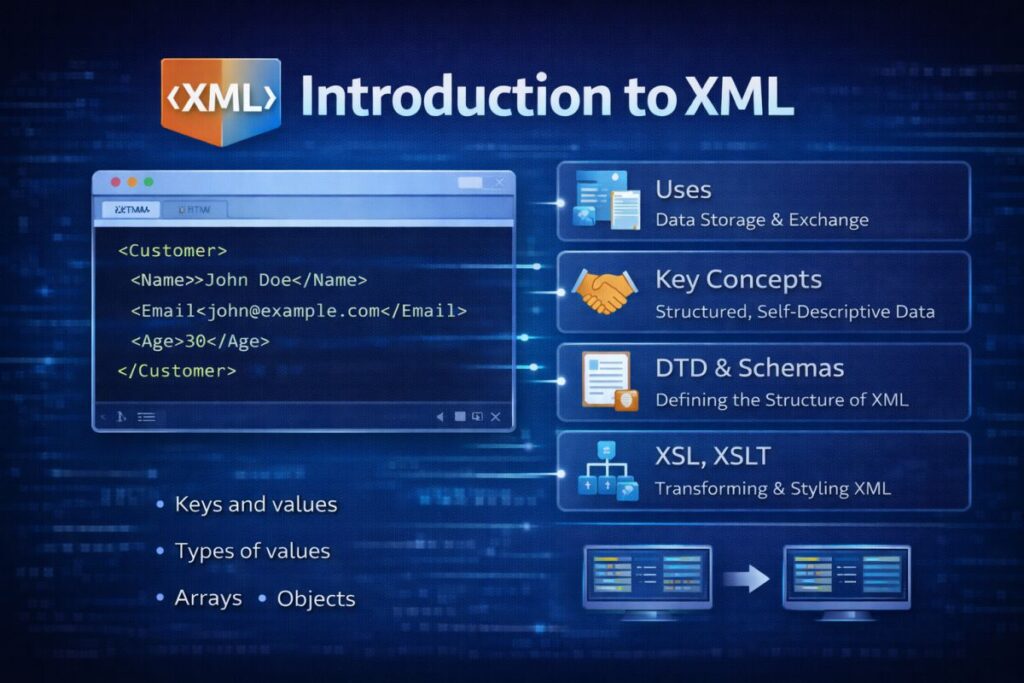
📘 Introduction to XML

(Web Technologies – BCA 2nd Semester)

  • 🌐 What is XML?

    XML stands for Extensible Markup Language.

    It is used to store and transport data in a structured format.

    Unlike HTML (which displays data), XML focuses on describing and organizing data.

🎯 Features of XML

  • Self-descriptive tags
  • Platform independent
  • Case-sensitive
  • User-defined tags
  • Structured and hierarchical

🧠 Example of XML

<?xml version=”1.0″?>
<student>
<name>Aman</name>
<course>BCA</course>
<year>2</year>
</student>

✔ XML allows you to create your own tags like <student>, <name>.

📌 Uses of XML

  • Data storage
  • Data exchange between systems
  • Web services
  • Configuration files
  • RSS feeds
  • Database data transfer

🔑 Key Concepts of XML

  • 🔹 1️⃣ Elements

    An element is defined by start and end tags.

     
    <name>Aman</name>
     

    🔹 2️⃣ Attributes

    Attributes provide additional information.

     
    <student id=“101”>
    <name>Aman</name>
    </student>
     

    🔹 3️⃣ Root Element

    Every XML document must have a single root element.

     
    <students>

    </students>
     

    🔹 4️⃣ Well-Formed XML Rules

    • Must have one root element

    • Tags must be properly closed

    • Tags are case-sensitive

    • Attribute values must be in quotes

📄 DTD (Document Type Definition)

  • 🌐 What is DTD?

    DTD defines the structure and legal elements of an XML document.

    It specifies:

  • Allowed elements
  • Attributes
  • Order of elements

🔹 Example of DTD

<!DOCTYPE student [
<!ELEMENT student (name, course)>
<!ELEMENT name (#PCDATA)>
<!ELEMENT course (#PCDATA)>
]>

✔ Ensures XML follows defined structure.

📘 XML Schema (XSD)

🌐 What is XML Schema?

XML Schema (XSD) is an advanced version of DTD.

It defines:

  • Data types
  • Structure
  • Constraints

🔹 Example of XML Schema

<xs:element name=”student”>
<xs:complexType>
<xs:sequence>
<xs:element name=”name” type=”xs:string”/>
<xs:element name=”age” type=”xs:int”/>
</xs:sequence>
</xs:complexType>
</xs:element>

✔ More powerful than DTD
✔ Supports data types

🎨 XSL (Extensible Stylesheet Language)

XSL is used to style and transform XML documents.

It includes:

  • XSLT (Transformation)
  • XPath
  • Formatting Objects

🔄 XSLT (Extensible Stylesheet Language Transformations)

🌐 What is XSLT?

XSLT is used to transform XML into:

  • HTML
  • Another XML
  • Plain text

🔹 Basic XSLT Example

XML File (student.xml)

<students>
<student>
<name>Aman</name>
</student>
</students>

XSLT File (style.xsl)

<xsl:stylesheet version=”1.0″
xmlns:xsl=”http://www.w3.org/1999/XSL/Transform”>

<xsl:template match=”/”>
<html>
<body>
<h2>Student List</h2>
<xsl:for-each select=”students/student”>
<p><xsl:value-of select=”name”/></p>
</xsl:for-each>
</body>
</html>
</xsl:template>

</xsl:stylesheet>

✔ This converts XML data into HTML format.

🧩 Important XSL Elements

ElementPurpose
<xsl:template>Defines transformation template
<xsl:value-of>Extracts value
<xsl:for-each>Loops through elements
<xsl:if>Conditional check
<xsl:apply-templates>Applies templates

🔄 Transforming XML Using XSLT

Steps:

  1. Create XML file

  2. Create XSL file

  3. Link XSL file to XML

Example (Linking):

 
<?xml-stylesheet type=”text/xsl” href=”style.xsl”?>
 

When opened in browser, XML is transformed into formatted HTML.

📊 Difference Between DTD and XML Schema

DTDXML Schema
Basic structure definitionAdvanced validation
No data typesSupports data types
Less powerfulMore powerful

📊 Summary Table

TopicDescription
XMLData storage and transport language
DTDDefines structure
XML SchemaDefines structure + data types
XSLStyles XML
XSLTTransforms XML
XSL ElementsTemplate, value-of, for-each

🎯 Exam Important Points

XML is used for storing and transporting data.

  • XML is case-sensitive.
  • DTD defines XML structure.
  • XML Schema provides data validation.
  • XSLT transforms XML into HTML.
  • XSL elements include template, value-of, for-each.

📝 Short Revision Notes

  • XML = Extensible Markup Language
  • Used for data exchange
  • DTD validates structure
  • XML Schema supports data types
  • XSLT transforms XML to HTML
Introduction to XHTML Key concepts and features.

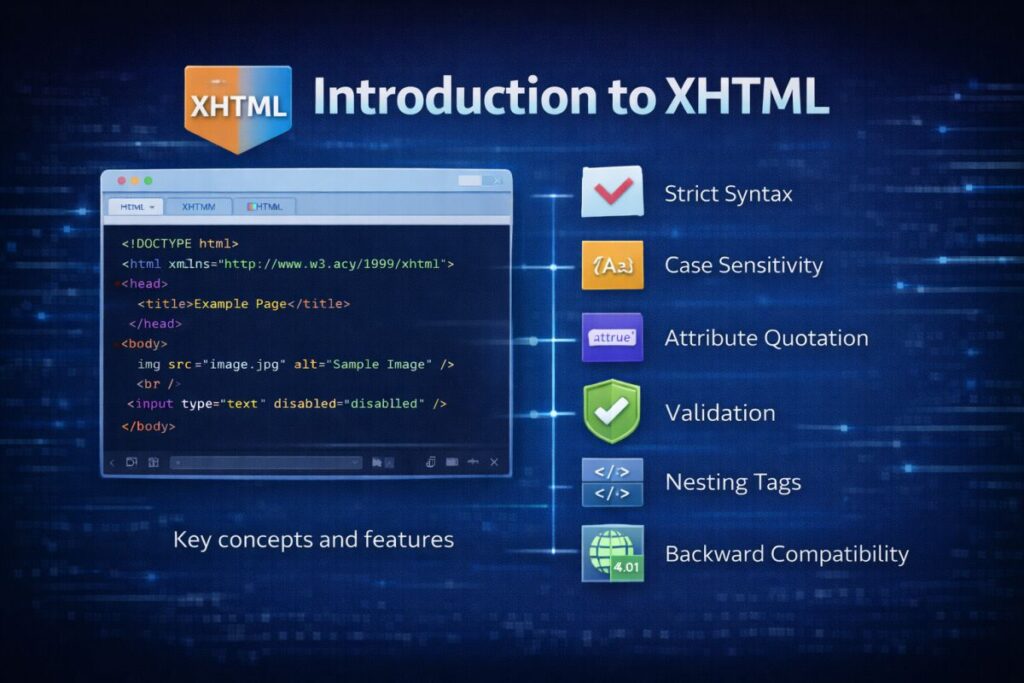
📘 Introduction to XHTML

(Web Technologies – BCA 2nd Semester)

  • 🌐 What is XHTML?

    XHTML stands for Extensible HyperText Markup Language.

    It is a stricter and cleaner version of HTML based on XML rules.

    XHTML combines:

    • HTML (structure of web pages)

    • XML (strict syntax rules)

    👉 XHTML ensures that web documents follow proper coding standards.

🎯 Why XHTML Was Introduced?

HTML had many syntax flexibility issues such as:

  • Missing closing tags
  • Case-insensitive tags
  • Improper nesting

XHTML was introduced to:

  • Make web pages more structured
  • Follow strict syntax rules
  • Improve compatibility with XML tools

🔑 Key Concepts of XHTML

🔹 1️⃣ XHTML Follows XML Rules

XHTML documents must be well-formed.

That means:

  • Proper closing of all tags

  • Proper nesting

  • Case-sensitive tags


🔹 2️⃣ Proper Tag Closing is Mandatory

❌ HTML Example (Allowed in old HTML):

 
<br>


✔ XHTML Example:

 
<br />


All tags must be closed.

Example:

 
<p>This is a paragraph.</p>


🔹 3️⃣ Lowercase Tags Only

❌ Incorrect:

 
<H1>Title</H1>


✔ Correct:

 
<h1>Title</h1>


XHTML is case-sensitive.


🔹 4️⃣ Proper Nesting of Tags

❌ Incorrect:

 
<b><i>Text</b></i>


✔ Correct:

 
<b><i>Text</i></b>


Tags must be properly nested.


🔹 5️⃣ Attribute Values Must Be in Quotes

❌ Incorrect:

 
<input type=text>


✔ Correct:

 
<input type=“text” />


🔹 6️⃣ Mandatory Root Element

Every XHTML document must have one root <html> element.


🏗 Basic Structure of XHTML Document


<!DOCTYPE html PUBLIC “-//W3C//DTD XHTML 1.0 Strict//EN”
“http://www.w3.org/TR/xhtml1/DTD/xhtml1-strict.dtd”>

<html xmlns=“http://www.w3.org/1999/xhtml”>
<head>
<title>XHTML Example</title>
</head>
<body>

<h1>Welcome</h1>
<p>This is XHTML page.</p>

</body>
</html>

🌟 Features of XHTML

  • Based on XML rules
  • Strict syntax enforcement
  • Case-sensitive tags
  • Mandatory closing tags
  • Proper nesting required
  • Attribute values must be quoted
  • Cleaner and well-structured code

📊 XHTML vs HTML


HTMLXHTML
Flexible syntaxStrict syntax
Case-insensitiveCase-sensitive
Closing tags optionalClosing tags mandatory
Attributes may not require quotesQuotes mandatory
More error-tolerantLess error-tolerant

📌 Types of XHTML

  • XHTML 1.0 Strict
  • XHTML 1.0 Transitional
  • XHTML 1.0 Frameset

🎯 Advantages of XHTML

  • Better code quality
  • Improved browser compatibility
  • Easier integration with XML tools
  • Cleaner structure

❌ Disadvantages of XHTML

  • Very strict rules
  • Small syntax mistakes can break page
  • Less flexible compared to HTML

📊 Summary Table


TopicDescription
XHTMLHTML + XML
PurposeStrict and structured web pages
RulesCase-sensitive, closed tags
AdvantageClean and well-formed
DisadvantageStrict and less flexible

🎯 Exam Important Points

  • XHTML stands for Extensible HyperText Markup Language.
  • It follows XML syntax rules.
  • Tags must be properly closed.
  • Case-sensitive language.
  • Attributes must be in quotes.
  • XHTML is stricter than HTML.

📝 Short Revision Notes

  • XHTML = HTML based on XML rules.
  • Strict syntax required.
  • All tags must be closed.
  • Case-sensitive language.
  • Cleaner and structured coding.
Introduction to JSON Keys and values, types of values, arrays, and objects.
📘 Introduction to JSON

(Web Technologies – BCA 2nd Semester)

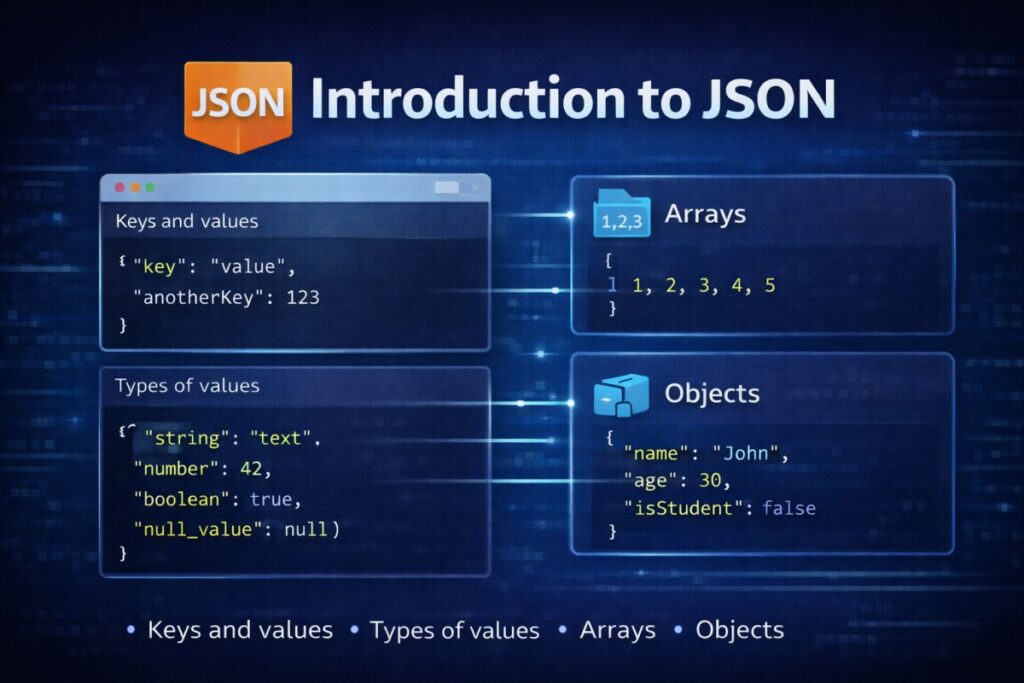
  • 🌐 What is JSON?

    JSON stands for JavaScript Object Notation.

    It is a lightweight data format used for storing and exchanging data between a client and a server.

    JSON is:

    • Easy to read

    • Easy to write

    • Lightweight

    • Language-independent

    Although derived from JavaScript, JSON is supported by almost all programming languages.

🎯 Why JSON is Important?

  • Used in APIs
  • Used in AJAX communication
  • Used in modern web applications
  • Faster and lighter than XML
  • Easy to parse and generate

🧩 Structure of JSON

  • JSON data is written in:

    • Key–Value pairs

    • Surrounded by { } (curly braces)

🔑 Keys and Values in JSON

  • A JSON object contains key–value pairs.

    Example:

     
    {
    “name”: “Aman”,
    “course”: “BCA”,
    “year”: 2
    }
     

    Explanation:

    • "name" → Key

    • "Aman" → Value

    • Keys must always be in double quotes

    • Values can be different data types

📦 Types of Values in JSON

JSON supports the following data types:

TypeExample
String“Hello”
Number25
Booleantrue / false
Nullnull
Object{ “key”: “value” }
Array[1,2,3]

🔹 Example with All Data Types

{
“name”: “Aman”,
“age”: 21,
“isStudent”: true,
“marks”: null
}

📚 JSON Objects

A JSON object is a collection of key–value pairs inside { }.

{
“student”: {
“name”: “Aman”,
“age”: 21,
“course”: “BCA”
}
}

Objects can be nested inside other objects.

📋 JSON Arrays

An array is a list of values inside [ ].

{
“subjects”: [“HTML”, “CSS”, “JavaScript”]
}

Arrays can contain:

  • Strings
  • Numbers
  • Objects
  • Mixed values

🔹 Array of Objects Example

{
“students”: [
{ “name”: “Aman”, “age”: 21 },
{ “name”: “Rahul”, “age”: 22 }
]
}

🔄 JSON and JavaScript

JSON is often converted into JavaScript objects.

🔹 Convert JSON Text to JavaScript Object

 
let jsonText = ‘{“name”:”Aman”,”age”:21}’;
let obj = JSON.parse(jsonText);
console.log(obj.name);
 

🔹 Convert JavaScript Object to JSON

 
let student = {name: “Aman”, age: 21};
let jsonData = JSON.stringify(student);
console.log(jsonData);

📊 JSON vs XML

JSONXML
LightweightHeavier
Easy to readComplex
Faster parsingSlower parsing
Uses key–value pairsUses tags

🌍 Uses of JSON

  • API responses
  • Data storage
  • Configuration files
  • Web applications
  • Mobile applications

Modern applications like:

  • Facebook
  • Twitter
  • Instagram

Use JSON for data communication.

📊 Summary Table


TopicDescription
JSONData exchange format
StructureKey–Value pairs
Data TypesString, Number, Boolean, Null, Object, Array
ObjectCollection of key–value pairs
ArrayOrdered list of values
MethodsJSON.parse(), JSON.stringify()

🎯 Exam Important Points

  • JSON stands for JavaScript Object Notation.
  • Used for data exchange.
  • Based on key–value pairs.
  • Keys must be in double quotes.
  • Supports string, number, boolean, null, object, and array.
  • JSON.parse() converts JSON to object.
  • JSON.stringify() converts object to JSON.

📝 Short Revision Notes

  • JSON is lightweight data format.
  • Uses { } for objects and [ ] for arrays.
  • Keys must be in double quotes.
  • Faster and simpler than XML.
  • Widely used in APIs and AJAX.